dimanche 3 novembre 2013
jeudi 31 octobre 2013
How to Add Signature in v7n Forum to Get Dofollow Backlinks
 Adding signature in dofollow backlinks forms is the foremost job for every blogger and webmaster. Every success blogger want to increase his/her blog reputation in online world. They work hard day and night to increase the number of backlinks flow to theirs blogs or website to get high PR juice. The blog which have more quality backlinks the more PR juice will flow to the blog. So it becomes difficult for a single blog author to handle this work and no one could be easily create bundles of dofollow backlink in a day or month, it require a lot of time to wast in building quality backlinks for the blog. So one our user asked how could we add signature with blog link in popular dofollow backlinks form to get backlinks instantly. So in today article we will show you, How to add signature in v7n forum to get quality dofollow backlinks.
 Learn How to Add Signature in v7n Form to Get Dofollow Backlinks
Why bloggers and webmasters tends to attend blogging forms.I would just say its all about making backlinks and increasing traffic. The most simple, easiest and finest way to building backlinks is to take place in blogging forms. I am not talking about to attend each and every blogging forum because most of blogging form do not allow dofollow backlinks, So you could not be able to get your goal from such forms. You have to find out what are the top blogging forms which allow dofollow links. So i have listed my favorite one v7n form which give us dofollow backlinks. So hit up your blog in v7n with signature and increase the number of backlinks.
Step 1:
- Go to v7n Form:
- Click on Register:
- Now fill up the registration form and get registration:
- Congratulation you become the member of v7n form community:
Step 2:
- Login into v7n form:
- Complete your bio information by clicking on your username:
- Initial you will have no access to add signature in the author bio:
Step 3:
- Now you have successfully upload your full information about yourself:
- Now start posting and make minimum upto 30 posts: Your replies to other member will also consider as posts. So reply to other posts or thread unless you make 30 posts.
- When you are successful in making 30 posts then you have to come again on author bio by clicking on your username:
- Now Click on Edit Your Friend List:
- Click on Add Signature You done Almost:
After Click on edit signature you will have to add your desire links:- You can insert upto 2 links: if you add more than 2 links then your account will be disable:

- After adding the first link you can add another link:
- You done almost:

dimanche 27 octobre 2013
Tweaks/Things to do after install of Ubuntu 13.10 Saucy Salamander
Tweaks/Things to do after Install of Ubuntu 13.10 Saucy Salamander
Ubuntu 13.10 Saucy is just released today, Ubuntu team has done really great work there aren't much new features in this release but many current features and issues improved in 13.10 saucy. So we can say canonical focused on stability of Ubuntu desktop. Unity is much much faster, responsive and a lot of things added like smart scopes, anonymous dash searches and many more. After a lot of digging to this release I was wondering what tweaks should we do with this release and than it will be completely ready to use for us. So tweaks work has been done by me and brought for you, after applying these tweaks your desktop will be complete. All tweaks has been tested by NoobsLab, So if you encounter any problem feel free to ask us. Lets start tweaking to 13.10 ...
Unity Tweak Tool is a configuration tool for the Unity Desktop, providing users access to features and configuration options not (obviously) accessible, and brings them all together in a polished & easy-to-use interface.
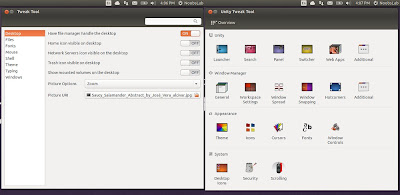 Install Tweak Tools with following command:
Also Checkout Ubuntu Tweak
CCSM, short for CompizConfig Settings Manager, is a configuration tool for Compiz Fusion. It is used to configure the many plugins included in Compiz and Compiz Fusion, as well as the use of various profiles and intergrating better with existing desktop settings.
To install Synaptic Manager and CCSM enter following commands in Terminal:
Go to Dash and Search "CCSM" or "synaptic"
Disable Remote Login and Guest account is enable by default in Ubuntu, It means anybody can login with guest account in your Ubuntu and remote to any computer.
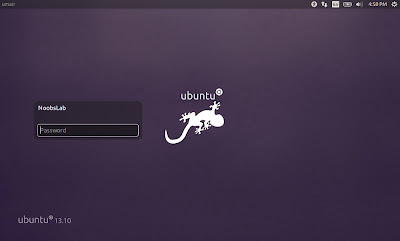
To remove white dots, enter following commands in Terminal:
To remove guest account open Terminal and enter following command:
To remove Remote login open Terminal and enter following command:
Save and close file, Now Restart to see effect.
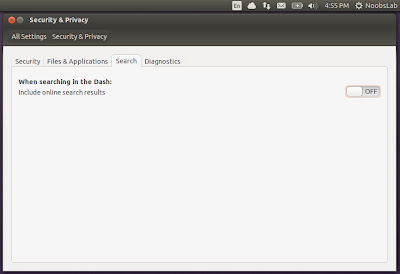 Alternatively you can remove online search lenses from Unity, Following commands will remove Music, Photos, and Video lenses and make Unity much responsive:
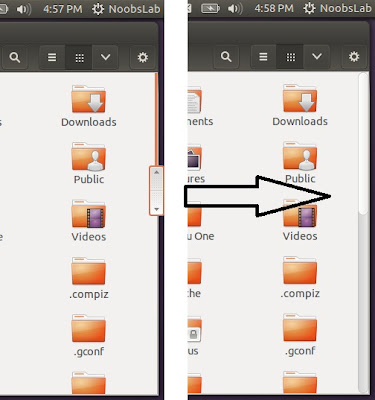 Enter following command in terminal to disable overlay scrollbar:
If you want to get back overlay bar, enter following command:
 Enter following command in terminal:
To remove name from panel, Enter following command:
 Enter following commands to disable crash reports:
Now text file will open, In the last line you will see "enabled=1" change it to "enabled=0". Save and close file.
Now enter following command in terminal to stop apport service:
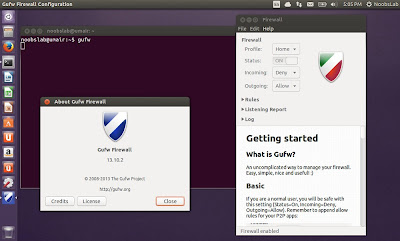 Enter following command in terminal to install firewall:
After installation open Dash and Search "GUFW" to configure it.
 Enter following command to move buttons to right:
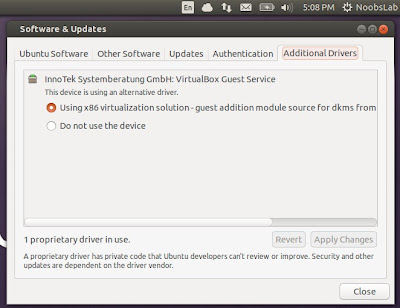
Open Dash and Search for "Software & Updates" Here you can find "Additional Drivers" in the last Tab.
 Open Terminal and enter following commands:
 Enter following command to install qBittorrent:

Enter following commands to install plugins.
After installation open Rhythmbox and Go to "Edit" -> "Plugins" and enable plugins.
Following command for Enable DVD Playback:
Enter following command in terminal to install:
Enable laptop mode and other tweaks for laptops
Improve laptop power management with TLP
Google Chrome
Skype
WineHQ (Windows Program Loader)
Install and Configure Samba Sharing between Windows and Ubuntu
Latest Nvidia Drivers (Only for those who own Nvidia Card)
Ati Amd catalyst Drivers (Only for those who own ATI Card)
Ubuntu 13.10 Saucy is just released today, Ubuntu team has done really great work there aren't much new features in this release but many current features and issues improved in 13.10 saucy. So we can say canonical focused on stability of Ubuntu desktop. Unity is much much faster, responsive and a lot of things added like smart scopes, anonymous dash searches and many more. After a lot of digging to this release I was wondering what tweaks should we do with this release and than it will be completely ready to use for us. So tweaks work has been done by me and brought for you, after applying these tweaks your desktop will be complete. All tweaks has been tested by NoobsLab, So if you encounter any problem feel free to ask us. Lets start tweaking to 13.10 ...

1: Tweak Tools:
Gnome Tweak Tool is well-known powerful tweak tool, With this tool you can manage your Ubuntu environment like: Change theme, icons, fonts, cursor and so on options.Unity Tweak Tool is a configuration tool for the Unity Desktop, providing users access to features and configuration options not (obviously) accessible, and brings them all together in a polished & easy-to-use interface.

Also Checkout Ubuntu Tweak
2: Synaptic and Compiz (CCSM) with extra plugins:
Synaptic is a graphical package management program for apt. It provides the same features as the apt-get command line utility with a GUI front-end based on Gtk+.CCSM, short for CompizConfig Settings Manager, is a configuration tool for Compiz Fusion. It is used to configure the many plugins included in Compiz and Compiz Fusion, as well as the use of various profiles and intergrating better with existing desktop settings.
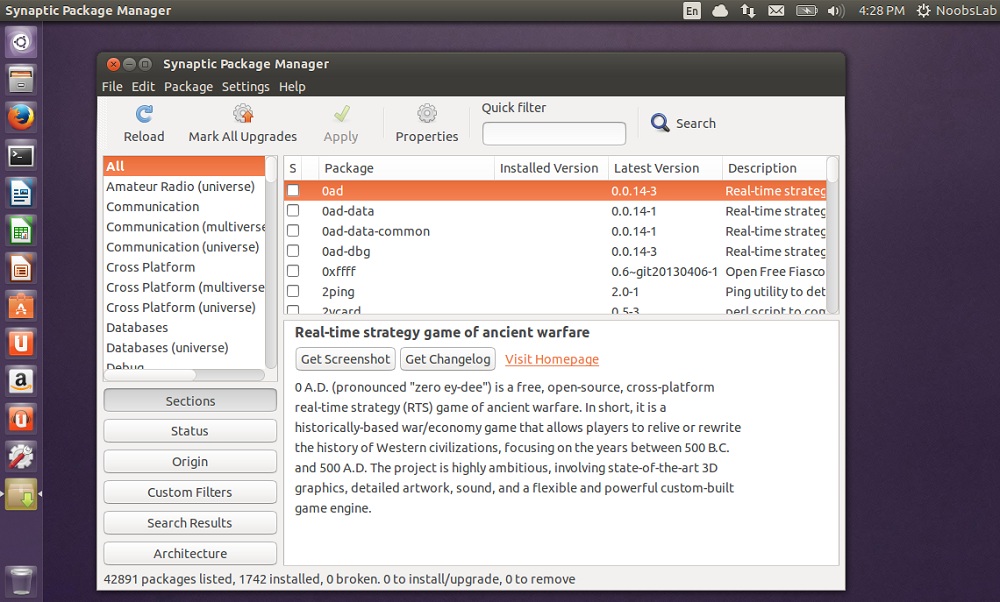 | 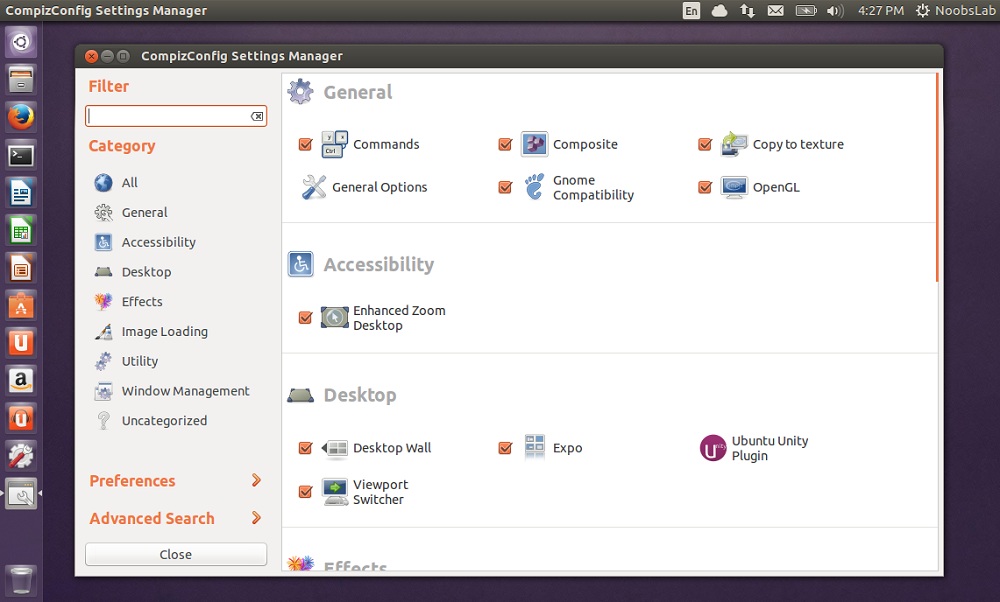 |
To install Synaptic Manager and CCSM enter following commands in Terminal:
Go to Dash and Search "CCSM" or "synaptic"
3: LightDM Tweaks
Remove White dots: If you want to remove white dots from login screen of Ubuntu 13.10.Disable Remote Login and Guest account is enable by default in Ubuntu, It means anybody can login with guest account in your Ubuntu and remote to any computer.

To remove white dots, enter following commands in Terminal:
To remove guest account open Terminal and enter following command:
To remove Remote login open Terminal and enter following command:
Save and close file, Now Restart to see effect.
4: Improve Unity Performance, Remove Online Search Lenses:
If you don't like online searches in Unity, You can disable it from Settings -> Privacy then Turn off online search.
5: Disable overlay Scrollbars:
You can disable overlay scrollbars, if you don't like that.
If you want to get back overlay bar, enter following command:
6: Show username on panel:
UserName is disabled by default in Ubuntu, So here is tweak you can enable it very easily.
To remove name from panel, Enter following command:
7: Disable System Crash Reports:
If you are experiencing something crashes in your Ubuntu, and you don't like to be notify with reports. You can disable them easily.
Now text file will open, In the last line you will see "enabled=1" change it to "enabled=0". Save and close file.
Now enter following command in terminal to stop apport service:
8: Firewall for Ubuntu:
Linux don't need Anti-virus but Firewall is important for any kind of Operating System. UFW is installed by default in Ubuntu but it is command line and disabled by default. You can install best firewall GUFW enable and manage it graphically.
After installation open Dash and Search "GUFW" to configure it.
9: Move Minimize, Maximize, Close Buttons to Right:
If you are used to use these buttons on right side then this tweak is useful for you. You can move Minimize, Maximize, and Close buttons to the right side.
10: Install tested drivers for your Hardware:
Ubuntu works perfect with latest hardware, It is better to use drivers offered by Ubuntu. You can choose best drivers for your hardware from additional driver and can enable/disable from there easily.Open Dash and Search for "Software & Updates" Here you can find "Additional Drivers" in the last Tab.

11: Install Adobe Flash Plugin:
Flash player isn't available by default , So you can install flash player easily from Ubuntu repositories.
12: qBittorrent Torrent client:
The qBittorrent project aims to provide a Free Software alternative to µtorrent. An advanced and multi-platform BitTorrent client with a nice Qt4 user interface as well as a Web UI for remote control and an integrated search engine. qBittorrent aims to meet the needs of most users while using as little CPU and memory as possible.
13: Integrate online accounts in Ubuntu
Ubuntu has Facebook, Google, Twitter, Yahoo, Hotmail and other accounts support. It offers you different features of your online account within Ubuntu desktop. Go to Settings > Online Accounts and configure accounts.
14: Plugins for Rhythmbox (Like Equalizer):
Rhythmbox is default Audio player in Ubuntu 13.10, You can install plugins for rhytmbox. Plugins are: Audio-read, Album-art-search, Countdown-playlist, plugin-cover-art-browser, Equalizer, Jump-to-Playing, Jump-to-Window, lyrics, micro-blogger, open-containing-foler, radio-browser, Random-album-player, Remember-the-rhythm, repeat-one-song, rhythm-web, send-first, small-window, stop-after, suspend, tab-guitar, tray-icon, web-menu, stream-ripperEnter following commands to install plugins.
After installation open Rhythmbox and Go to "Edit" -> "Plugins" and enable plugins.
15: Install Restricted Extras:
There are some Restricted extras in Ubuntu which can't be install while installation of Ubuntu by default but you can install these Restricted extras by yourself. Restricted mp3 playback and decoding, support for various formats, fonts, java, flash plugin, lame, dvd playback.16: Codecs and Enable DVD Playback:
If you are multimedia user and use Ubuntu for multimedia then these codecs are very useful for you. You can install them by single command.Following command for Enable DVD Playback:
17: Compression/Decompression tools:
You can compress and decompress 7z, zip, gzip, rar, xz, tar, bz2, xar, tar.gz, tar.bz, and many others.Enter following command in terminal to install:
18: Tools/Tweaks For Laptop Power Management
If you are using laptop then TLP and laptop mode tools are really important for your laptop battery and power consumption. These tools has ability to save battery life and some other features.Enable laptop mode and other tweaks for laptops
Improve laptop power management with TLP
19: To Reset Unity:
>> to reset the Unity:20: Must have Misc/Softwares for Ubuntu 13.10 Saucy:
Enable Transparent Desktop Cube and Wobbly WindowsGoogle Chrome
Skype
WineHQ (Windows Program Loader)
Install and Configure Samba Sharing between Windows and Ubuntu
Latest Nvidia Drivers (Only for those who own Nvidia Card)
Ati Amd catalyst Drivers (Only for those who own ATI Card)
File Managers SunFlower Twin-Panel


